


The best technology is designed with everyone in mind. That’s why our products and services have built-in features to help you create, connect, and do what you love, your way. Our long-standing commitment to accessibility is fundamental to everything we do.
Must-know vision, hearing, speech, mobility, and cognitive features.
-
VoiceOver
Hear detailed descriptions of what’s in view, just by asking.
Powered by Apple Intelligence



VoiceOver
For those who are blind or have low vision, VoiceOver is an industry‑leading screen reader that tells you exactly what’s happening on your screen audibly, in braille, or both. Easily control and navigate your screen through simple gestures on a touchscreen, trackpad, or Bluetooth® keyboard. VoiceOver also offers deep customization options, like modifying your favorite built-in voice for speech feedback and tailoring its verbosity, speed, and accompanying sound and haptic feedback to your preferences.
VoiceOver can also describe your surroundings in great detail. VoiceOver Recognition provides descriptions of images and screen elements on webpages and apps, even if they don’t provide accessibility information. And with Live Recognition,1 you’ll get descriptions of objects in the real world, such as people, doors, text, and furniture in indoor spaces.2
With Apple Intelligence,3 these essential tools become even more powerful. Image Explorer uses Apple Intelligence to give richer descriptions of images on your screen, including what’s in photographs, scanned bills, personal records, and other visual content. Use the Action button on iPhone to quickly ask a question about what’s in the camera viewfinder and get a detailed response.4 You can even ask follow-up questions in your own words to get more visual information.
Features are subject to change. Some features, applications, and services may not be available in all regions or all languages. See iOS and iPadOS or macOS for feature availability. See iOS and iPadOS for VoiceOver Live Recognition and Image Explorer availability.
Set up VoiceOver on:
-
Generated Subtitles
Get real-time captioning for shared or personal videos.


Generated Subtitles
While captions or transcriptions often already exist for movies, shows, and podcasts, subtitles for spoken dialogue are rarely available for personal videos, content shared by friends and family, and other media. With new generated subtitles, videos can display automatic transcriptions of spoken audio when captions or subtitles are not already provided. This includes clips recorded on iPhone, received from friends and family, or streamed online. With on-device speech recognition, subtitles are generated privately. You can customize the appearance of your subtitles in the video playback menu or in Settings.5Set up Subtitles on:
-
AirPods Pro 3 + Hearing Health
Set up a clinical-grade Hearing Aid feature.


AirPods Pro 3 + Hearing Health
AirPods Pro 2 and AirPods Pro 3 offer an end-to-end hearing health experience, giving you access to a Hearing Test, a clinical-grade Hearing Aid feature, and active Hearing Protection.6
Take a scientifically validated Hearing Test in the comfort of your home in about five minutes by pairing AirPods Pro with an iPhone or iPad.6 You’ll receive easy-to-understand results and insights into your hearing. The clinical-grade Hearing Aid feature can help those with perceived mild to moderate hearing loss.6 It makes adjustments that improve the clarity of voices and sounds around you. You can even customize settings — including amplification, balance, and tone — to your needs. AirPods Pro also provide active Hearing Protection across listening modes to help prevent exposure to loud environmental noise.7
Set up Hearing Health on:
Watch Apple Support videos on YouTube:
How to take a Hearing Test and turn on the Hearing Aid feature, opens in new tab
-
Personal Voice
Create a voice that sounds like you.
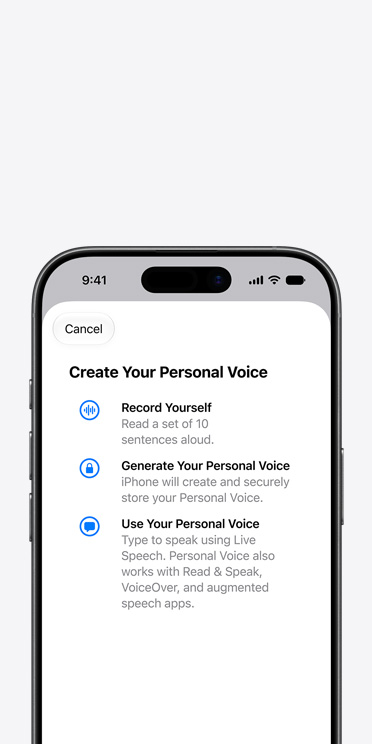


Personal Voice
If you are at risk of voice loss or have a condition that can progressively impact your voice, Personal Voice can help. It’s a simple and secure way to create a voice that sounds like you.8 Read through a series of 10 randomized phrases to record audio that can be used to generate a voice in under a minute that sounds similar to your own.9 If you have difficulty pronouncing or reading full sentences, you can even create your Personal Voice using short, three-word phrases.
Personal Voice is created on your device to keep your information private and secure. You can also save an encrypted copy of your voice to iCloud to use on your other devices. Personal Voice seamlessly integrates with Live Speech, so you can type what you want to say and have your iPhone, iPad, Mac, Apple Watch, or Apple Vision Pro speak it aloud in the voice you created. It also works with third-party apps that you allow, such as augmentative and alternative communication (AAC) apps.
Features are subject to change. Some features, applications, and services may not be available in all regions or all languages. See iOS and iPadOS or macOS for feature availability.
Watch Apple Support videos on YouTube:
Set up and use Personal Voice and Live Speech on iPhone and iPad, opens in new tab
-
Voice Control
Say what you see to navigate your device.
Powered by Apple Intelligence

Voice Control
Navigate your device using just your voice. Commands like click, swipe, and tap help you easily interact with your favorite apps. You can precisely select, drag, and zoom by showing numbers alongside clickable items or by superimposing a grid on the screen. Voice Control also offers a more efficient way to write and edit. With Voice Control spelling mode, you can dictate names, addresses, and even custom spellings letter by letter.10 It’s a seamless way to make corrections, format changes, and transition between text dictation and commands.
With Apple Intelligence,3 Voice Control can use your natural language descriptions to take action on the screen instead of memorizing exact labels or numbers.11 This option to “say what you see” by using intuitive language, like “tap the guide about best restaurants” or “tap the purple folder,” is great for navigating apps with visual layouts such as Apple Maps or Files.
If you are new to Voice Control on iPhone, iPad, or Mac, the feature includes an onboarding experience with education support to help you learn the ins and outs quickly and easily. Voice Control is compatible with CarPlay, so you can control the built-in car display with voice commands, too. For software developers with limited mobility, you can use Swift mode to dictate code in Xcode.
Features are subject to change. Some features, applications, and services may not be available in all regions or all languages. See iOS and iPadOS or macOS for feature availability. CarPlay is available only in supported countries and regions.
Set up Voice Control on:
-
Accessibility Reader
Customize and summarize complex articles with ease.
Powered by Apple Intelligence


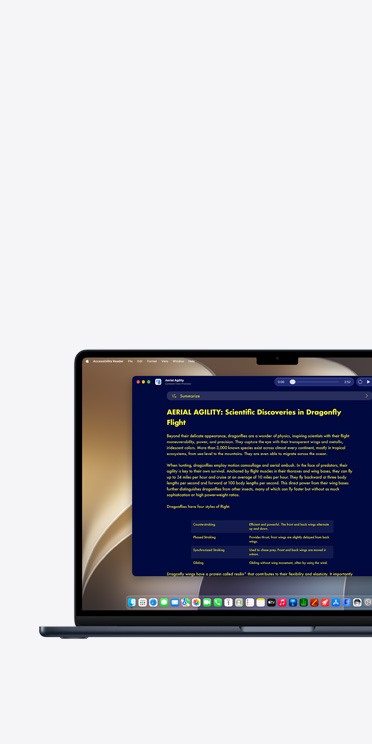


Accessibility Reader
Accessibility Reader is a systemwide reading experience designed to make text easier to read for people with a wide range of disabilities, from dyslexia to low vision. Customize long-form text and focus on content you want to read, with extensive options for font, color, and spacing, as well as built-in audio controls to read text out loud as you follow along. Accessibility Reader can be launched from any app and is built into the Magnifier app for iOS, iPadOS, and macOS. It helps create a unified reading experience that’s tailored to you — with both digital text or text in the real world.
Accessibility Reader uses Apple Intelligence to clean up and format content with multiple columns, images, and tables in complex materials like scientific articles.3 On-demand summaries give you the option to get an overview of the article before diving into the details. And with built-in translation, you can read text in your native language while keeping custom formatting, font, and colors.
Features are subject to change. Some features, applications, and services may not be available in all regions or all languages. See iOS and iPadOS or macOS for feature availability.
Set up Accessibility Reader on:


Explore our accessibility resources.
-
Watch Apple Support videos on YouTube, opens in new tab
Support Videos
Learn tips and how-tos from Apple Support on YouTube.
-
Visit Apple Accessibility Support
Accessibility Support
Get help with your features or connect with an expert.
-
Learn more about Accessibility Accessories
Accessibility Accessories
Shop assistive accessories for your Apple devices.
-
Learn more about Assistive Technologies
Assistive Technologies
Browse third-party devices for vision, hearing, and mobility.
-
Learn more about Accessibility for Older Adults
Accessibility for Older Adults
Find resources to support independence and wellbeing.
-
Learn more about Accessibility in Apple’s Workplace
Accessibility in Apple’s Workplace
Discover how Apple supports accessibility for every employee.
-
Learn more about Accessibility in Education
Accessibility in Education
Explore accessibility features for your learning community.
-
Learn more about Developer Guides
Developer Guides
Find resources for designing accessible apps.
Discover how accessible design makes all the difference.









More from Apple on accessibility.
Our values lead the way.
-
Education
We empower students and educators to learn, create, and define their own success.
-
Environment
We’re committed to bringing net emissions to zero across our entire carbon footprint by 2030.
-
Inclusion and Diversity
We’re holding ourselves accountable for creating a culture where everyone belongs.
-
-
Racial Equity and Justice
We’re addressing systemic racism by expanding opportunities for communities of color globally.
-
Supply Chain Innovation
We uphold high standards to safeguard people and the planet across our global supply chain.